Error: Frequent connection problems in Palworld
The developers at Palworld and we are constantly working to ensure that both the game and the servers are stable and that no problems occur.
Nevertheless, various connection problems can occur from time to time.
Hint Most connection problems and error messages in relation to your server can be resolved in no time by restarting the server.
Infinite loading screen
This problem should actually be a thing of the past, as the developers have released a patch for it, but of course it can still happen that the problem reappears here and there. In such cases, carry out the following steps:
- Check the integrity of the game files on Steam
- Restart the game and try to connect again
- Restart your Palworld server and try again
Other connection problems
Connection problems due to the use of VPNs
For various reasons, it can happen that a connection via VPN is recognized as “problematic” and therefore cannot be established. In such cases, we recommend disconnecting the VPN connection and trying again.
Incorrect entry of server information
If you simply want to play quickly, it can easily happen that a typing error creeps into the server address or password and the connection cannot be established. Therefore, always make sure that you have entered the data correctly.
Server won’t start due to corrupted save game
It may happen that a save game has been corrupted and your server can no longer start correctly. Such damage to the save game can theoretically be caused by small changes in the configuration. Fortunately, Palworld itself creates backups, allowing you to revert to a previous save game. To import such a save game backup, proceed as follows:
- Open the “File Manager” in our web interface
- Follow the path below:
Pal/Saved/SaveGames/0/XXXXXXX- XXXXXXX stands for an individual long number combination for your server (see example below)

- Click on “Create new directory” and create any directory you like, such as “old”

- Here, you can now select the “Players” folder, Level.sav, and LevelMeta.sav with Ctrl + left click and “cut” them with a right click
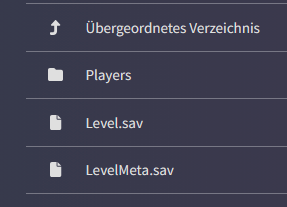
- Then switch to the “old” folder and right-click again to paste the files
- Now go back to the previous folder and navigate to the “Backup/World” folder
- Here you will see the backups listed
- Now select a time when the server was working properly and open the corresponding folder
- Select all the files in the folder you have chosen and copy them by right-clicking
- Now navigate back to the directory with the long individual number and paste the data you just copied
- Now start your server and everything should be running smoothly again 🙂
Connection problems after the 1.0 launchThe full 1.0 release on July 10, 2026 brought a large wave of new and returning players. If you cannot connect right after launch, keep these points in mind:
- Launch-day load: official and community servers can be busy – wait a moment and retry, and restart your server if it becomes unresponsive.
- Crossplay mismatch: if console players cannot join, check that the platform is included in your
CrossplayPlatformssetting. See our crossplay guide. - Version mismatch: make sure your game client and server both run the 1.0 build.
- Server clustering: on clustered setups, confirm all linked servers are online and share the same version. See our clustering guide.


