The GPORTAL Gamecloud
In the web interface we offer a gamecloud instead of direct game servers. In this gamecloud you can create game servers of different games as you like.
What is the Gamecloud?
The purpose of a gamecloud is that you can create multiple game servers in a cloud and also delete them at will.
Example how you Gamecould use a cloud
You currently have a cloud with 20 slots for one game. You can then turn this into two servers with 10 slots each, for example, on each of which you can play a different game.
IMPORTANT Different games require a different number of minimum slots to be able to use a server. For some it is only 4 slots, but for many it is 10 slots or sometimes even more. For games that require 10 slots, for example, you CANNOT divide them into smaller slot quantities than those 10.
The servers can be changed at will during the term. This means that the servers can be deleted, added or the number of slots can be varied as required (provided the minimum number of slots is respected).
IMPORTANTThere are some games that are not included in the main Gamecloud. These include, for example, Minecraft, Hytale, and Project Zomboid (since they use a RAM-based model), as well as the Farming Simulator series and Enshrouded. There may be other exceptions as well.
How do I expand slots in the Gamecloud?
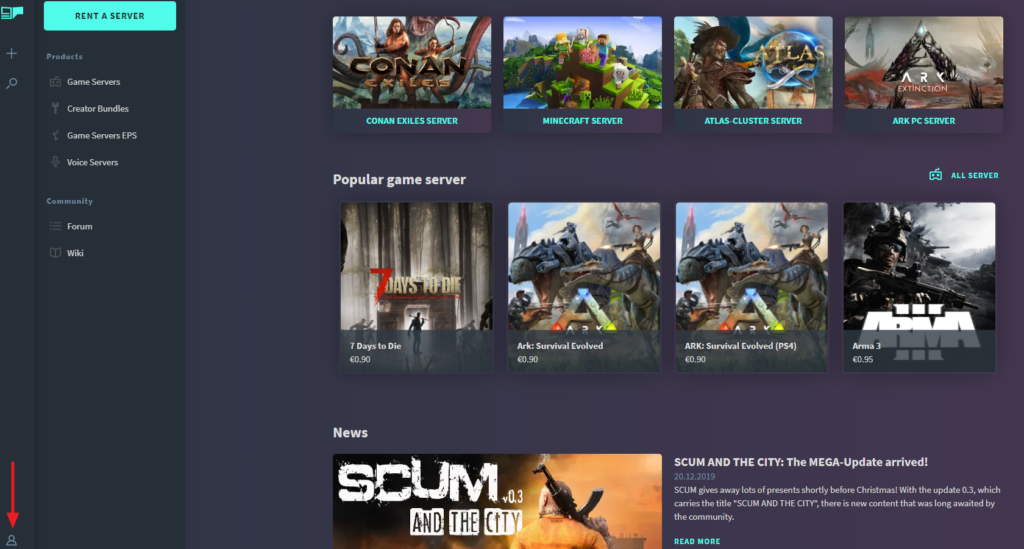
- Log in to your GPORTAL account
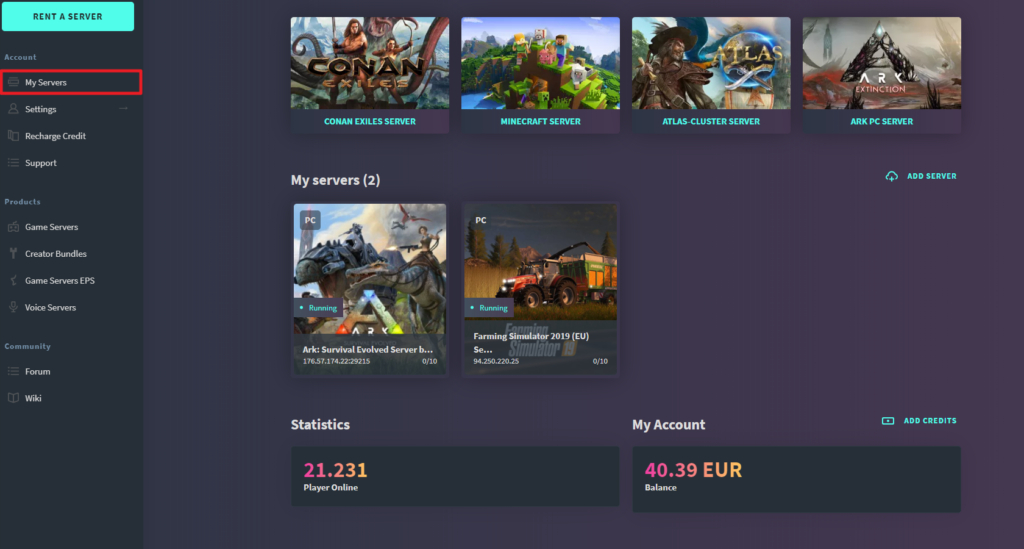
- Click on “My Servers”
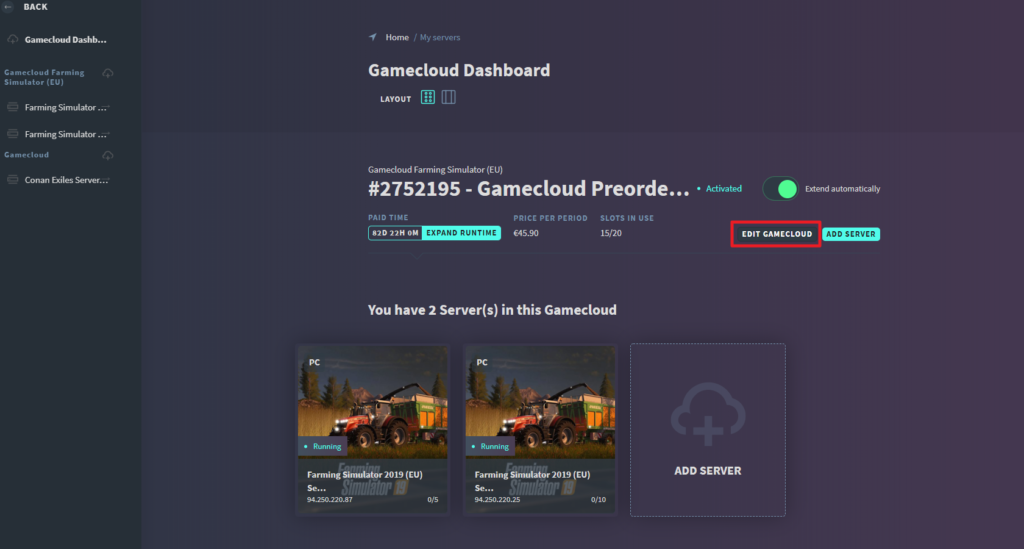
- Click on “Edit Gamecloud”
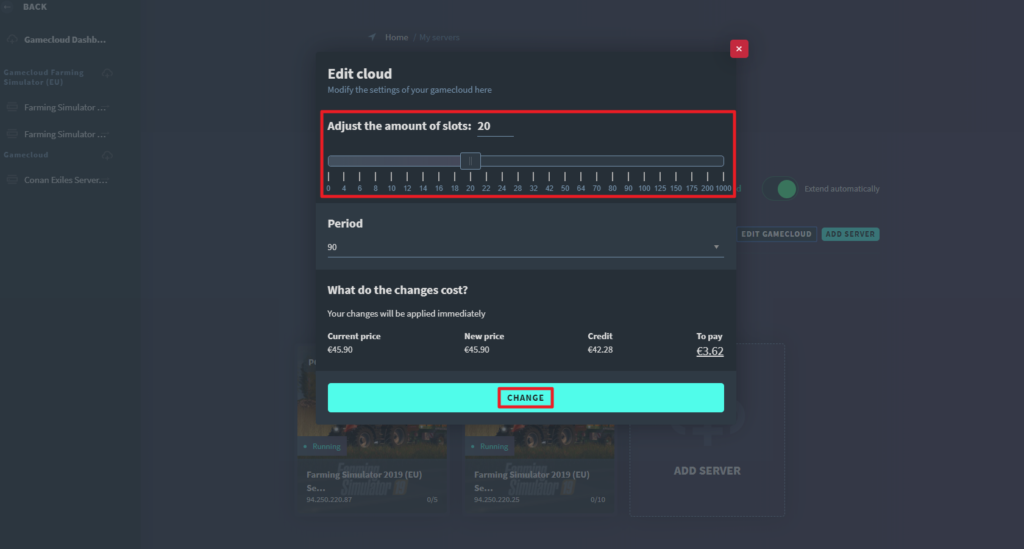
- Use the slider to select the desired slots
- Click on “Change” to confirm the changes
IMPORTANTWith slot-based gameclouds, it is NOT possible to change the amount of RAM. Furthermore, more slots do not automatically mean more RAM. The amount of RAM for a gamecloud can only be changed for RAM-based gameclouds, which currently include only Minecraft (Java), Hytale, and Project Zomboid.
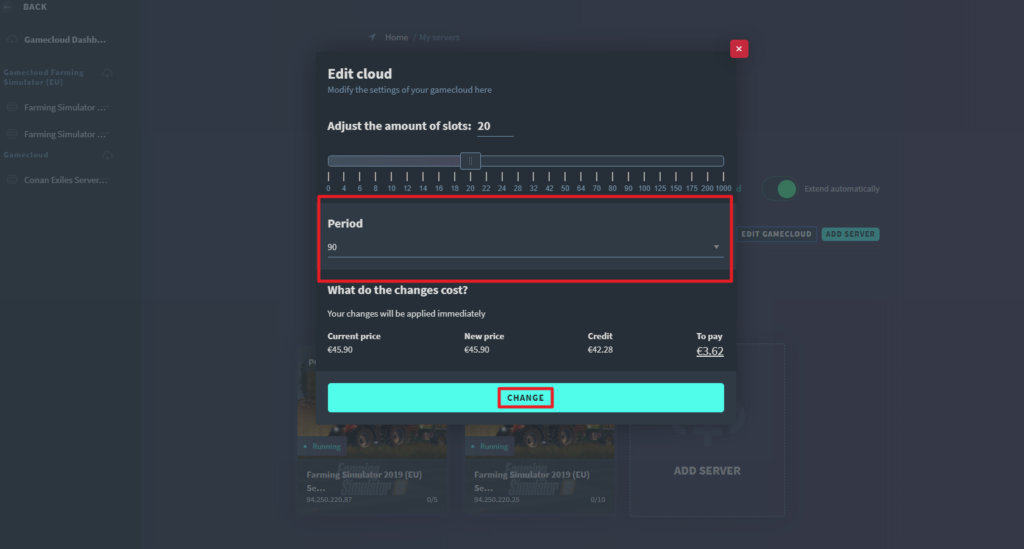
How do I change the runtime of the Gamecloud?
- Log in to your GPORTAL account
- Click on “My Servers”
- Click on “Edit Gamecloud”
- Select the desired time in the “Period” section
- Click on “Change” to confirm the change
How do I reactivate a cancelled Gamecloud?
If you change your mind after cancelling, you can reactivate a Gamecloud that has already been cancelled. Please note that the required credit must be available in your account, as the costs cannot be collected via the payment method.
Proceed as follows:
- Log in to your GPORTAL account
- Click on “My servers” on the left
- On the right side you will see “Reactivate” for a canceled Gamecloud
- Click on “Reactivate” and confirm the following message with “Activate”
similar articles

GPORTAL FAQ
How can I request a refund?


GPORTAL FAQ