Terraria
Terraria is a 2D open-world game, with a partially integrated third dimension.
Explore, fight, dig and build. Almost anything is possible in the action-packed adventure game.
Basic server configuration
How do I create a new Terraria character?
To create a new character, do the following:
- Start the game
- Select either single player or multiplayer to open the character selection screen
- Choose “NEW” at the bottom right of the character selection screen
- Select the game mode you want to play (Journey, Classic, Mediumcore or Hardcore)
- Edit the character and give it a name
- Select “Create” and start your adventure
How do I join my Terraria server?
Proceed as follows:
- Start the game
- Click on “Multiplayer”
- Click “Join via IP”
- Select a player / Create a player
- Enter just the IP of your server (without the port) on the first page
- Click “Accept”
- Enter the port
- Accept
- Then enjoy the game!!
Create backup
You can create backups for your GPORTAL server if you want to. You receive free storage space for saving your game play.
Note Please note that backups are not created automatically.
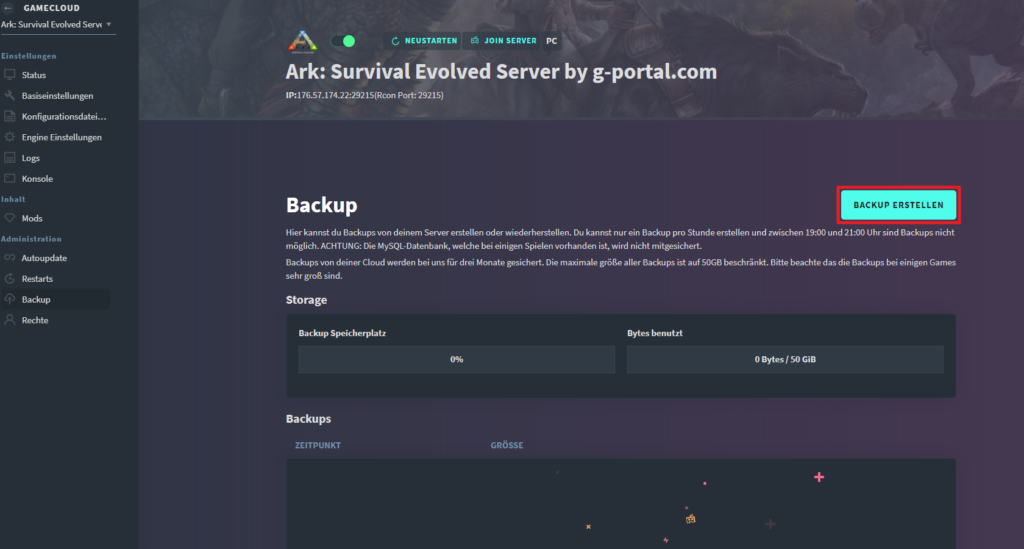
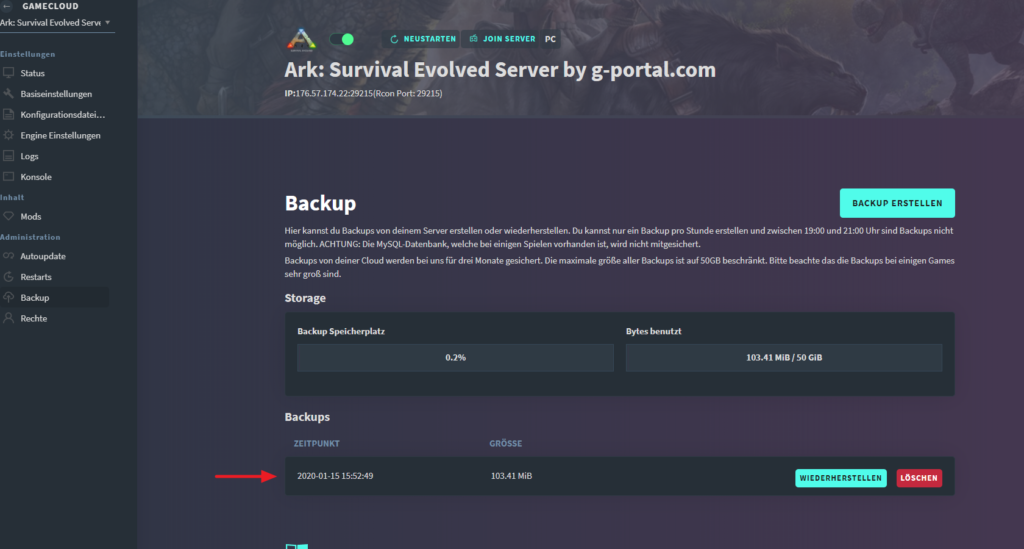
How to create a backup via the web interface:
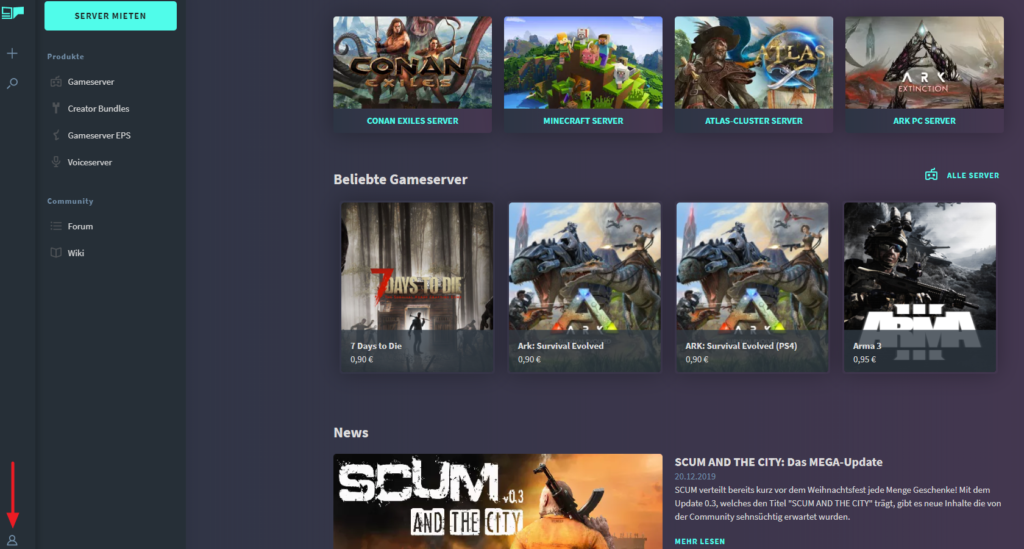
- Log on to our website
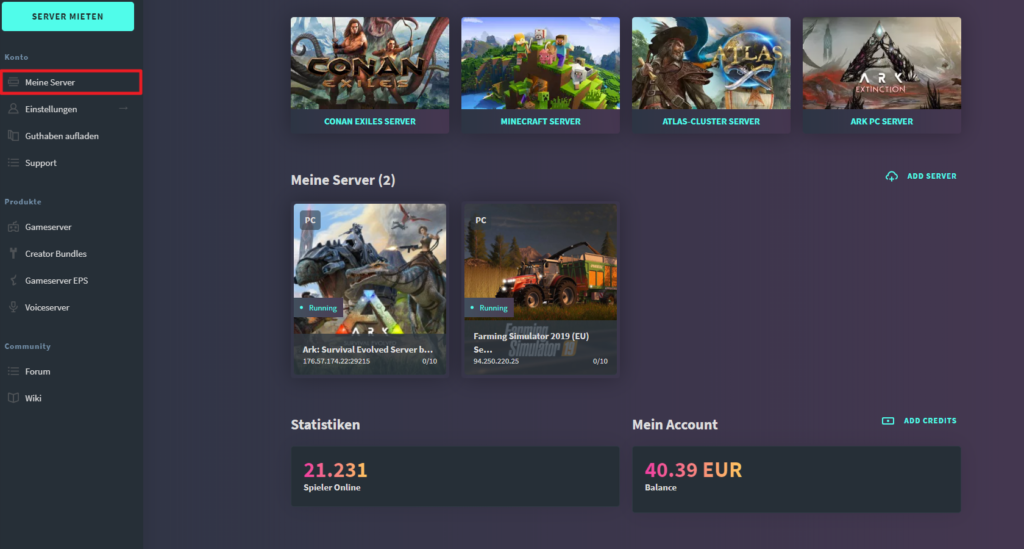
- Click on “My Servers” in the menu on the left
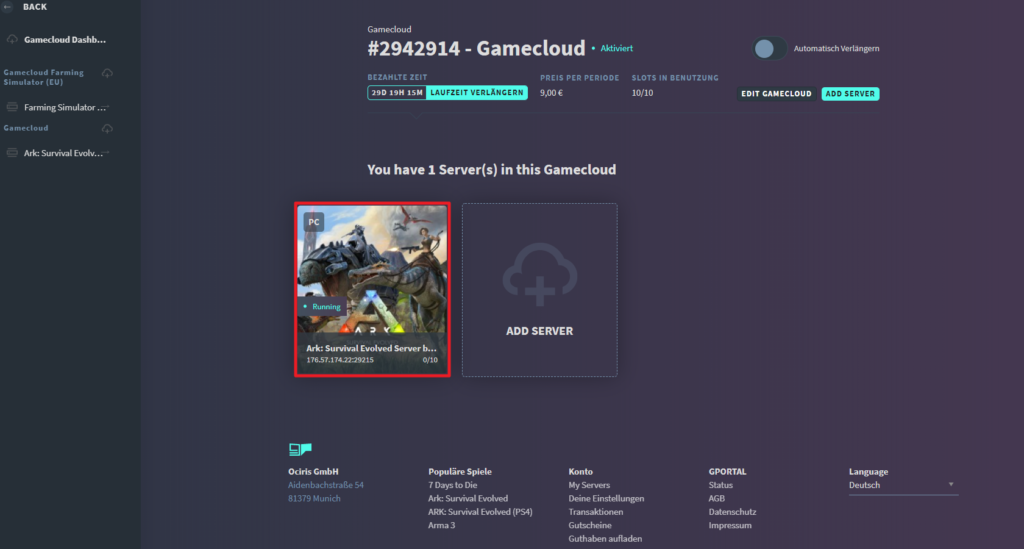
- Select the desired server
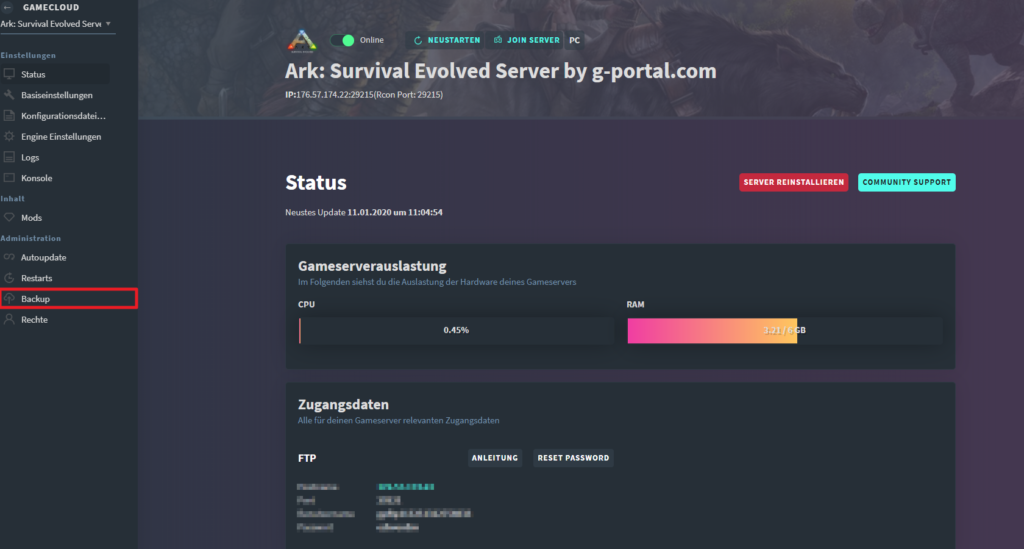
- Click on “Backup” in the “Administration” menu on the left
- Click on “Create Backup“
- The server stops for the backup
- After creating the backup, the server restarts automatically

Log in to our website Click on “My Server” in the menu on the left Select the desired server Click on “Backup” in the “Administration” menu on the left Click on “Create Backup” You see the backup in the list below
How do I become an Admin?
ImportantThe following instructions apply to Terraria with the TShock Mod and not the Vanilla version!
- Log on with your GPORTAL account
- Select the server
- Click on “Basic Settings” in the menu on the left
- Make a note of the FTP data
- Connect to the FTP server
- Open the “tshock” sub-directory
- Copy the code from the “setupcode.txt” file
- Start Terraria
- Connect to your server
- Open chat (Default: Enter)
- Enter “/setup CODE” in chat
How do I become a permanent Admin?
To become a permanent Admin on your Terraria server, follow the steps in the “Become an Admin” section.
If you have logged in as an Admin in the game, follow these steps:
- Open chat in the game (Default: Enter)
- Enter the command: “/user add PLAYERNAME PASSWORD superadmin” (no quotation marks)
- Use: “/login PLAYERNAME PASSWORD” in chat to get Admin rights.
Further server configuration
How can I upload/download a game world?
Before proceeding with the following steps, stop your server. Once that is done, go through the steps below:
Upload a game world
- Go to the status page of your Terraria server and you will see the FTP access information
- We suggest that you use FileZilla
- Enter the hostname, username, password and port in FileZilla and click “Quick Connect”
- On the left side are your local files and on the right side are the server files
- Click on “Worlds” on the right side
- Find the same file on your PC (left side) and either right click on it and choose “Download” or just drag it to the other side
- Wait until the download of the world is finished
- Select your world in the basic settings of your server
- Save
- Now start your server and have fun!
Download a game world
- Go to the status page of your Terraria server and you will see the FTP access information
- We suggest that you use FileZilla
- Enter the hostname, username, password and port in FileZilla and click “Quick Connect”
- On the left side are your local files and on the right side are the server files
- Click on “Worlds” on the right side
- Right-click on the “Worlds” folder and download it
- Now start your server again
If you want to upload these world files to your server again at a later time, you will find the instructions directly above.
tModLoader Installation and how to use it
The tModLoader is an easy way to load Terraria modifications (mods) and add them to the game. The installation of said mods is very easy to handle and usually happens via drag & drop function. The effort is therefore low.
How do I install the tModLoader?
You can find tModLoader for free in the Steam catalog. Just click HERE and you will be taken directly to the right page or search for the term in the Steam store.
How do I add mods?
Follow these steps:
- Launch tModLoader and in the main menu go to Workshop > Manage Mods to enable all the mods you want to play with on the server
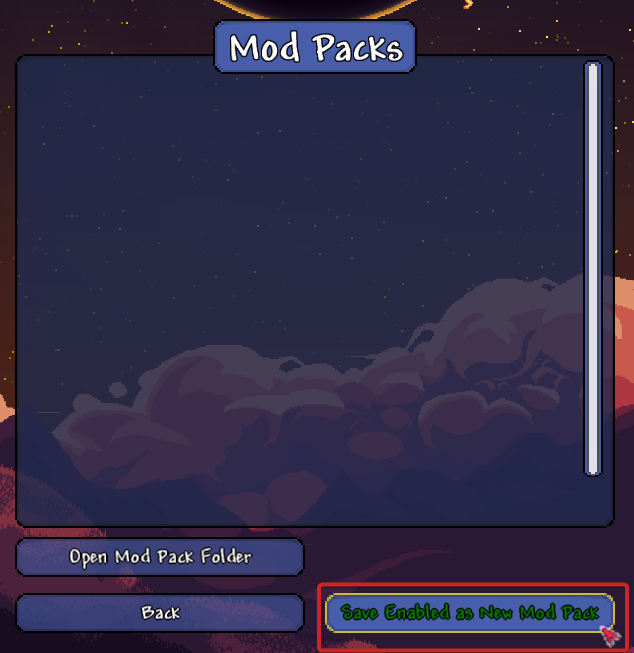
- Navigate to Workshop > Mod Packs and click “Save Enabled as New Mod Pack” in the lower-right corner
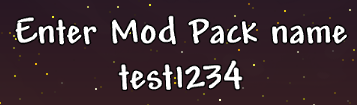
- Enter any name for the modpack
- For the modpack you created, click “Export Pack Instance”
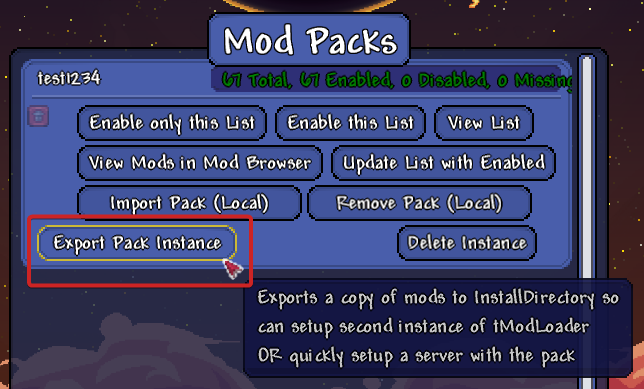
- A new window will open in the Explorer, navigate to SaveData/Mods in that window, and you should then be able to see all the mods along with the configured enabled.json file
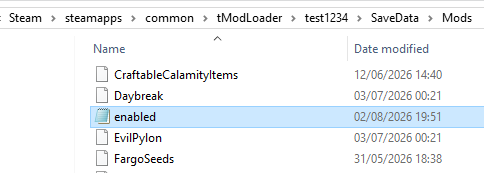
- Now all you have to do is upload this “Mods” folder, which has been opened, to your server via FTP, and then you’re ready to go
- We recommend using Filezilla for the FTP connection
Have fun playing!