Windrose – Import savegames from another host to GPORTAL
If you want to transfer your Windrose game data from another host to your GPORTAL server, that’s no problem. We’ll tell you how to do it and what you need to keep in mind.
Note The following steps and instructions generally apply to all games if you want to transfer your save data to the GPORTAL server, but they are currently particularly relevant for Windrose and Enshrouded.
Download your data from another hosting provider
- First, connect to the server from which you want to download your files using your preferred FTP client
- VERY IMPORTANT: Set the transfer mode to “Binary” (this is possible in most FTP clients)
- In the screenshot below, you can see the view in WinSCP, where this mode is used by default
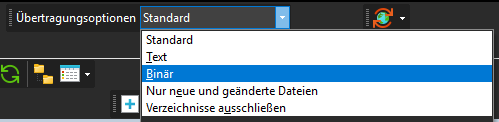
Why is switching to “binary” so important?
- Since the release of Windrose, we have received an increasing number of inquiries stating that, for example, save files from Nitrado do not work with our servers
- The reason save files from Nitrado, for example, do not work is that all files there are displayed in ASCII mode, including the binary files for the save data
- If these files are copied via FTP in ASCII mode, they become corrupted, so they no longer work after being transferred to our servers
- Of course, this can also affect save data from other hosting providers
So what can be done to ensure that data is always transfered without errors?
As mentioned above, the most important step is to set the switch to “Binary” in your FTP tool. However, we’ll break it down for you in detail below to ensure you don’t run into any problems.
Brief explanation of the issue: Save data that use RocksDB (e.g., Windrose) contain binary database files. If these files are transferred via FTP in ASCII mode, they become corrupted in the background, causing the server to crash upon startup with the error message “CURRENT file corrupted error” (or similar).
Method 1: FileZilla FTP (recommended for most users)
- Download the FileZilla client from FileZilla (the free FTP client, not the FileZilla Server)
- Before connecting:
- With most hosting providers, you should make sure your server has been stopped before establishing an FTP connection
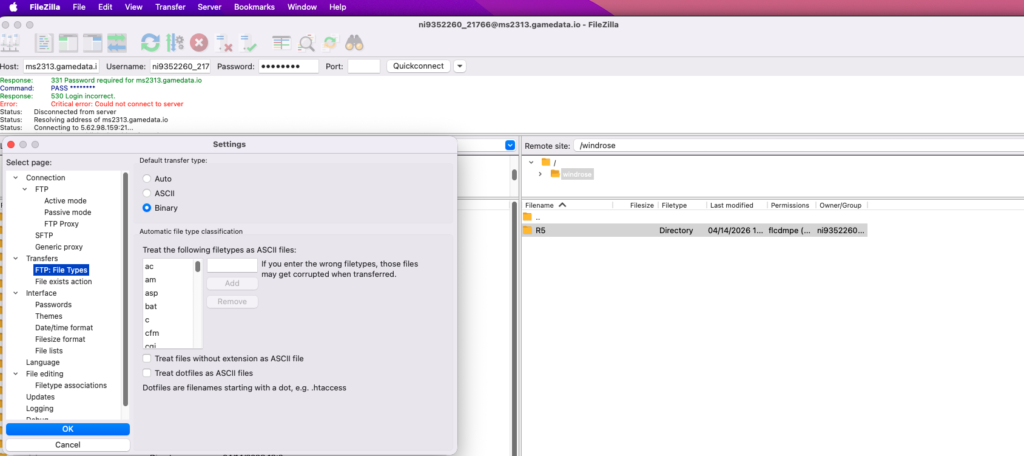
- Then go to “Edit” → “Settings” → ‘Transfers’ → “File Types” and set the default transfer type to “Binary”
- Connect using your FTP credentials
- You can find your FTP credentials in the web interface of your server
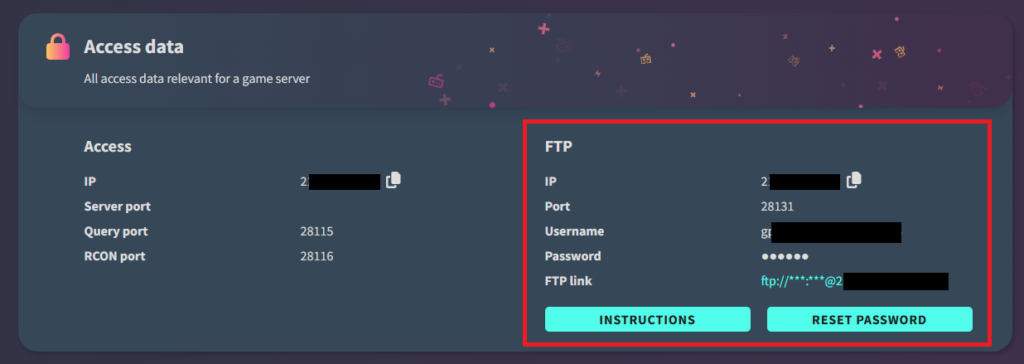
- Then download the windrose/R5/Saved folder
- Now compress this folder, in other words, create a .zip file from it
- Now stop your GPORTAL Windrose server
- Then upload the .zip file to the R5 folder and extract it into the same directory
- Load the settings page
- The saved world from your previous host (e.g., Nitrado) should now also appear in the list of worlds
- Select it, save the settings, and start your server
- Your server should now load the saved world
Note If there were already save files on an old GPORTAL server, you can extract the corresponding world folder directly into Saved/SaveProfiles/Default/RocksDB/0.10.0/Worlds. This should work in theory, but we have only tested it on a brand-new, empty server so far.
Method 2: Terminal (Mac/Linux)
- Install curl (usually already available on Mac) and run the following command, replacing the placeholders with your FTP credentials and paths:
- Download the file in binary mode (curl FTP always uses binary mode by default)
curl –ssl-reqd “ftp://USERNAME:PASSWORD@HOSTNAME:21/path/to/save/file” -o localfile - To recursively download folders, first install lftp:
brew install lftp # Mac
sudo apt install lftp # Linux
lftp -e “set ftp:ssl-force true; mirror /remote/save/folder /local/destination; quit” \ -u “USERNAME,PASSWORD” ftp://HOSTNAME:21
Important Always stop the server on the source host before downloading. Transferring the storage data from a running server can result in a corrupted snapshot.


