Palworld Backups: Create & Restore Your World | GPORTAL
Quick answer: Create a Palworld backup manually in the GPORTAL web interface under the “Backups” tab, or use a backup automatically created by Palworld, which you can also access via our web interface. Always back up your data before every update or configuration change. To restore: Stop the server, load the backup, and restart.
At a glance
- Manual backup: GPORTAL web interface – Backups menu
- Automatic backup: Backups created by the game (also accessible via the GPORTAL web interface)
Table of contents
- Why do I need Palworld backups?
- How do I create a manual backup?
- How do I enable automatic in-game backups?
- How do I restore a backup?
- When should I back up my Palworld server?
- Do automatic backups affect performance?
- FAQ
Palworld backups protect your world from corrupted saves, failed mod updates and risky config changes – and they are essential before the 1.0 update. This guide shows how to create and restore backups on your GPORTAL Palworld server, both manually and automatically.
Why do I need backups?
A single corrupted save file can stop your server from starting. Small configuration changes, mod updates or a major game update like 1.0 can all put your progress at risk. A backup is a clean restore point that costs seconds to create and can save hours of lost progress.
How do I create a manual backup?
- Log in to your GPORTAL account and open your Palworld server.
- Open the Backups tab in the web interface (found on the left-hand side).
- Create a new backup and wait for it to complete before major changes.
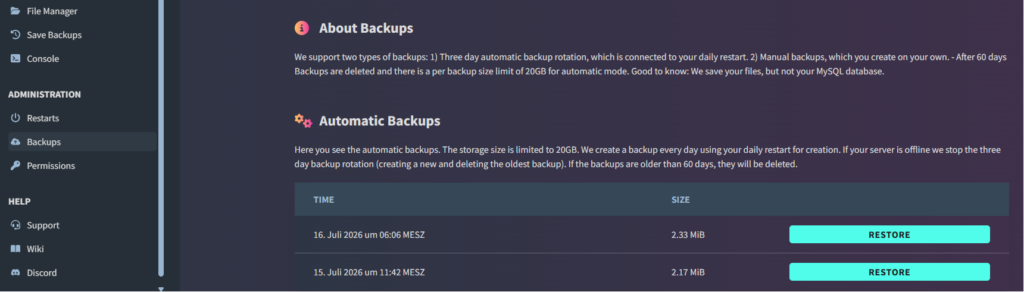
Every GPORTAL server includes generous backup storage for your saves and configurations.
How do I enable automatic in-game backups?
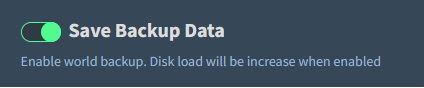
Palworld creates automatic backups by default. The default interval for this is 1,800 seconds (every half hour). This game feature is represented by the following toggle in our web interface and is always enabled by default.
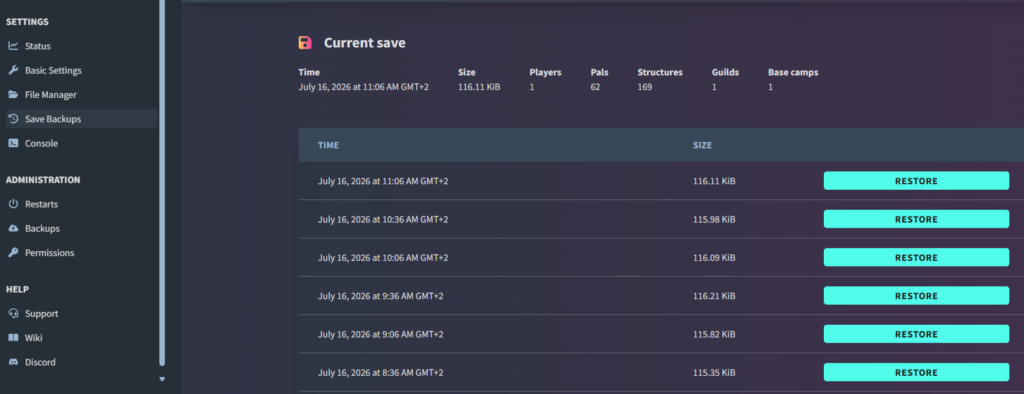
These backups are then stored and displayed in our web interface, and can be easily retrieved and restored as needed.
The interval for automatic backups can be adjusted in the Basic Settings in the web interface. The default value is 1,800 seconds (30 minutes).
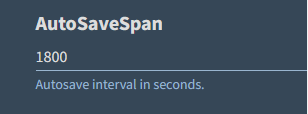
Note that a shorter interval can lead to higher disk usage.
How do I restore a backup?
- Stop your server.
- Restore the desired backup via the web interface (in the Backup tab; see previous screenshots).
- Start the server and confirm your world loads correctly.
When should I back up my Palworld server?
Back up before any major change: the 1.0 update, installing or updating mods, editing config values, or converting a server into a cluster. Regular scheduled backups also protect against corrupted saves, which are the most common cause of a server that will not start. A good rule of thumb: if a change touches config or save data, back up first.
Do automatic backups affect performance?
Using automatic game-side backups may have a minor impact on hard drive performance. However, disk usage may increase noticeably if you set the automatic backup interval to a value lower than the default interval of 1,800 seconds (30 minutes).
Related topics
- How can I upload a savegame to my Palworld server?
- Palworld 1.0 update – what’s new
- Palworld server settings explained
FAQ
Does Palworld create automatic backups?
Yes. Palworld automatically creates backups at a set interval (1,800 seconds / 30 minutes), which can be accessed through our web interface.
Should I back up before the Palworld 1.0 update?
Absolutely. This applies to all updates in general. Always create a manual backup of your world so you can restore it if problems arise.
How often does Palworld create automatic backups?
The default interval is 1,800 seconds (30 minutes). However, you can also change it.
Where are Palworld backups stored?
You can easily access the backups created by Palworld through our web interface and restore them if necessary.
How do I restore a corrupted Palworld world?
Stop the server, restore a recent backup via the web interface (or upload an older save via FTP), then restart and confirm the world loads.
Still have questions? Our support team is happy to help.


