Creating backups in Minecraft
You can create a Minecraft backup for your GPORTAL server, and you’ll receive free storage space for saving your gameplay.
Note Please note that backups are not created automatically.
How to create a Minecraft backup on GPORTAL
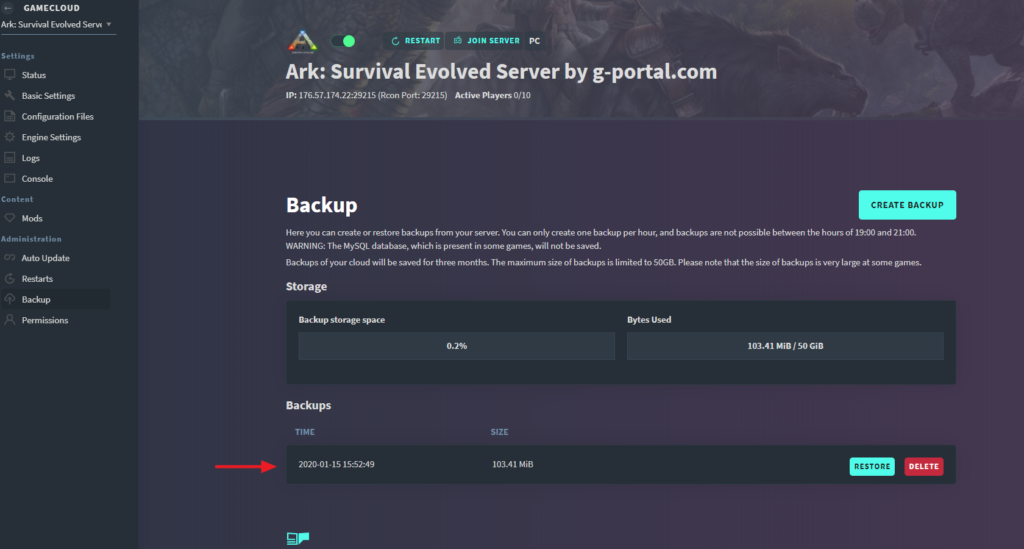
With just a few clicks you have created your Minecraft backup on your GPORTAL server.
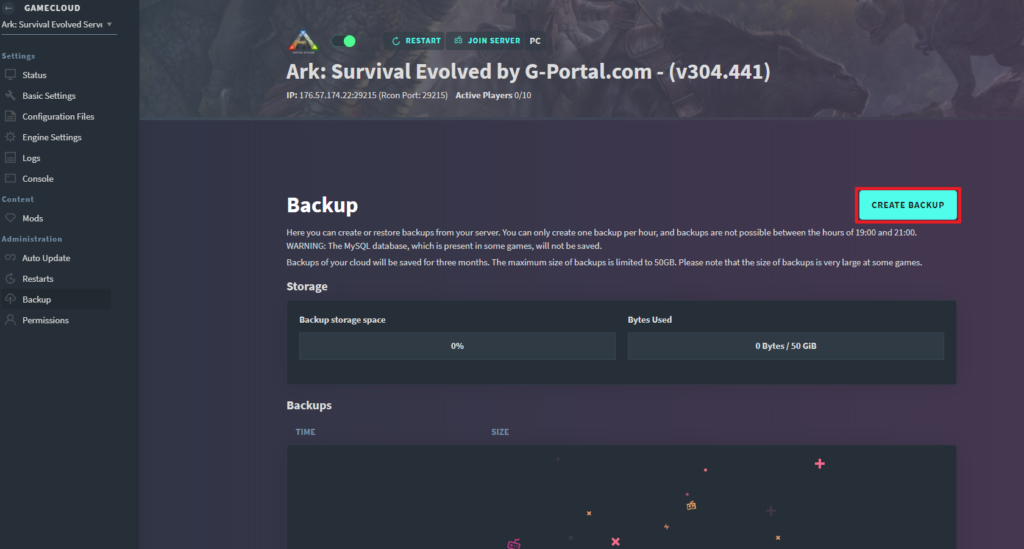
How to create a Minecraft backup via the web interface:
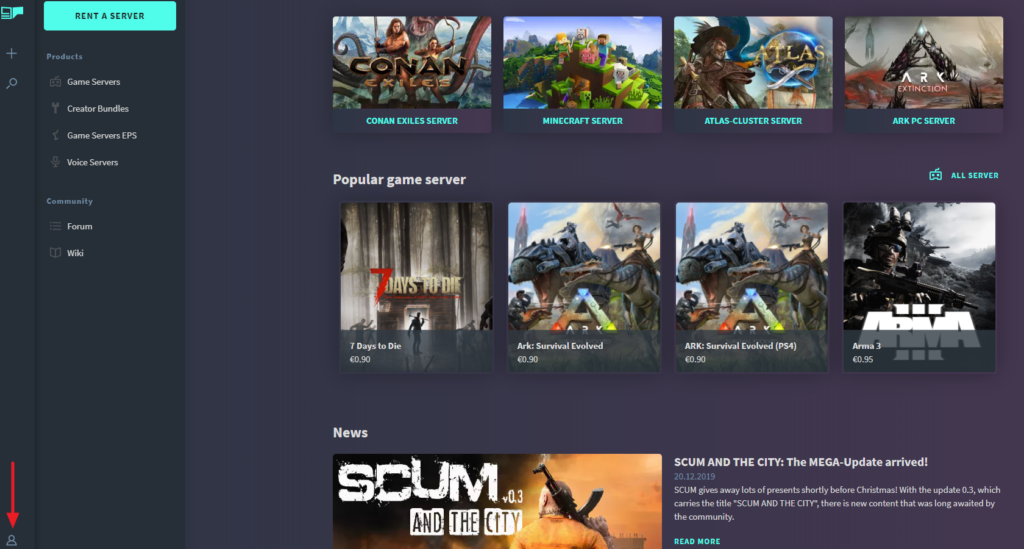
- Log on to our website
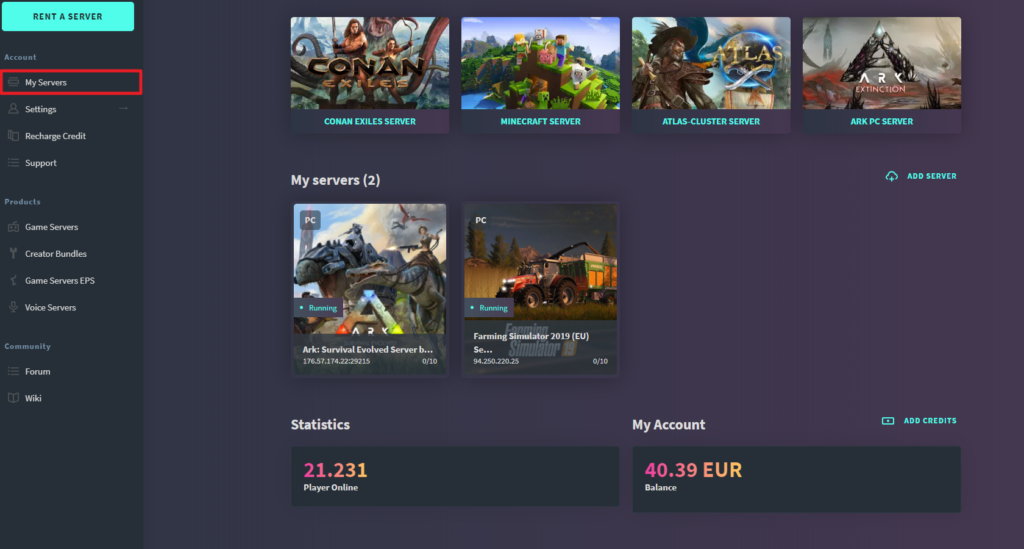
- Click on “My Server” in the menu on the left
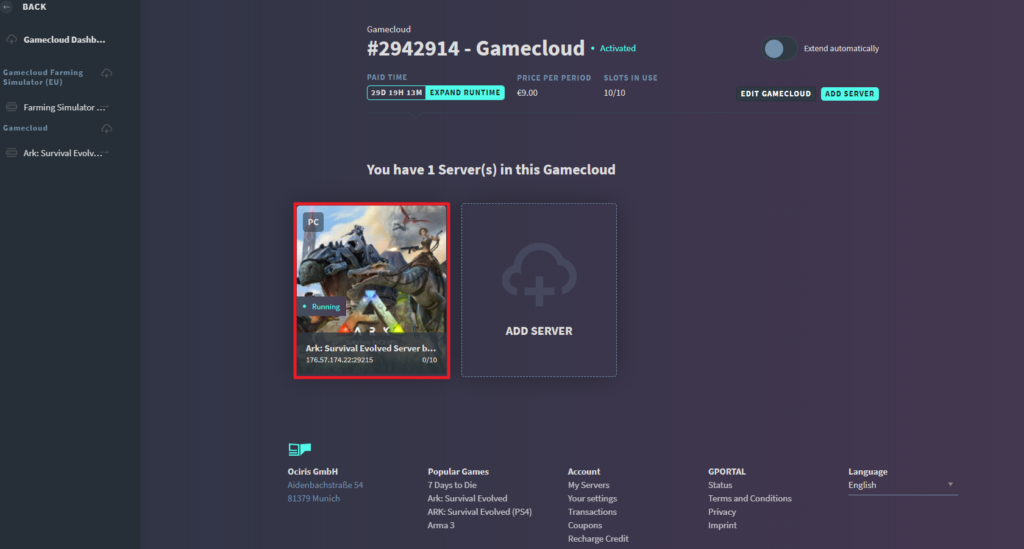
- Select the server
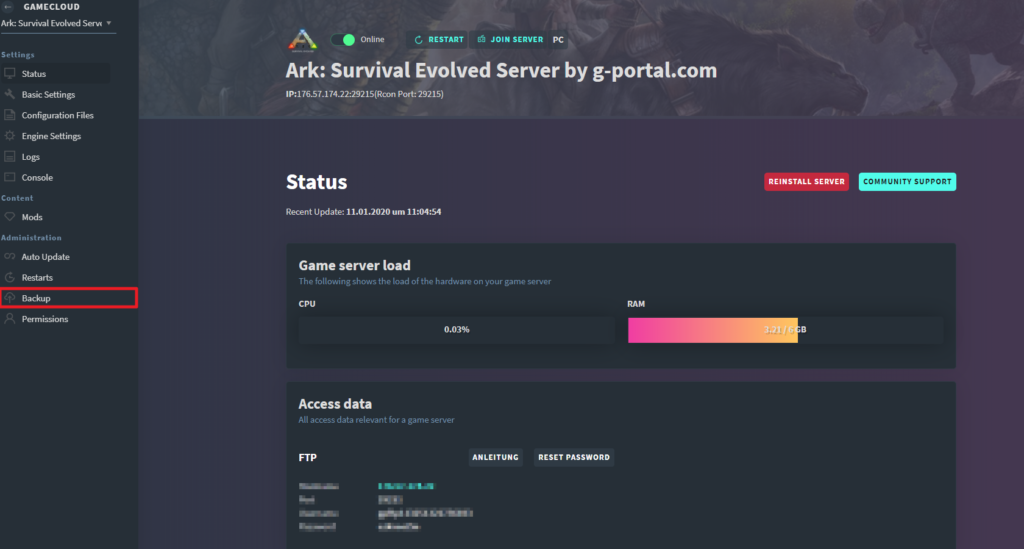
- Click on “Backup” in the “Administration” menu on the left
- Click on “Create Backup“
- The server stops for the backup
- After creating the backup, the server restarts automatically
- Alternatively, click on “Restart“
Rent your GPORTAL Minecraft server now!
Minecraft save game state
If you want to create a backup of your own Minecraft server, this is also possible. If you have administrator rights, you can simply enter the command “/save-all” in the chat.
Alternatively, you can use direct input in the console of the server with “/save-all“.
Saving game files and the Minecraft world
In order to backup an entire Minecraft world, for example, things get a bit more detailed. It does not matter what kind of server is used.
For root servers, vServers or local home servers, you can use an FTP client (e. g. FileZilla) for your backups. In the navigation directory, you can copy out the entire Minecraft folder and paste it to a safe place. If the old state is then needed, it can be pasted again in the same way: Copy the backed up folder and paste it into the Minecraft server’s navigation directory.
similar articles

Minecraft
Minecraft Education Edition

Minecraft
Minecraft Flowers

Minecraft